 Minecraft Nukkit
How to install a texture pack on a Minecraft Nukkit server
Complete guide to installing a texture pack (resource pack) on your Lordhosting-hosted Minecraft Nukkit server and forcing it on all players.
First, you need to go to your game panel, log in, and follow these steps:
- Compress your texture pack into a .zip file. Inside, you should find something like this:

- Click on the "File manager" tab to access your server files.
- Next, find the folder named "resource_packs" and click on it.
- Press the "Upload" button at the top of your page and select the packs (.zip files, see step 1) on your computer/phone that you want to import to your server.
- Next, find the file named "resource_packs.yml" and click on it.
- By default, you should find this:
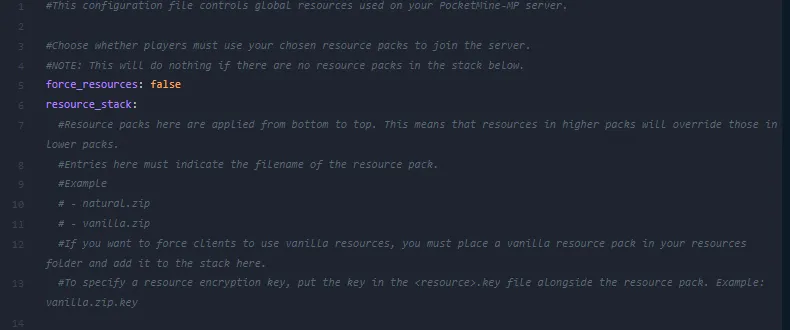
- By default, you should find a line that says
force-resources=false. Replace it withforce-resources=true. - Then add your texture pack to the list:
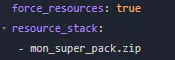
- Once you have found the perfect word, click on the "Save Content" button to save your changes, then restart your server.
Don't have a server yet? Rent a Minecraft server at LordHosting with 24h free trial, intuitive panel and 7/7 support.
Related guides
How to update your Minecraft Nukkit server
Step-by-step tutorial to update your Minecraft Nukkit server to the latest version: backup, JAR download, restart and post-update testing.
How to change the MOTD on your Minecraft Nukkit server
Step-by-step tutorial to change the MOTD (message of the day) on your Minecraft Nukkit server and customize the welcome shown in the server list.
How to put a map on your Minecraft Nukkit server
Step-by-step tutorial to import a custom map onto your Minecraft Nukkit server: FTP transfer, level-name configuration and world loading.
How to install a plugin on your Minecraft Nukkit server
Step-by-step tutorial to install a plugin on your Minecraft Nukkit server: download, adding to the plugins folder, restart and configuration.