 Minecraft Java Edition
How to Change the Java Version on Your Minecraft Server
Tutorial to change the Java version (Java 8, 17, 21, GraalVM) on your LordHosting Minecraft server in a few clicks from the panel.
 Minecraft
Try this guide on a real Minecraft server, free for 12 hours
A Minecraft server ready in minutes to put this tutorial into practice, then you decide.
- No credit card
- 12 hours from first launch
- One trial per person
Last updated: March 2026
Is your server crashing on startup with a Java error? Did you just change your Minecraft version and need to update Java? This tutorial shows you how to do it in 30 seconds from the LordHosting panel.
If you don't know which Java version matches your server, check out our complete guide: Which Java Version to Choose for Your Minecraft Server?
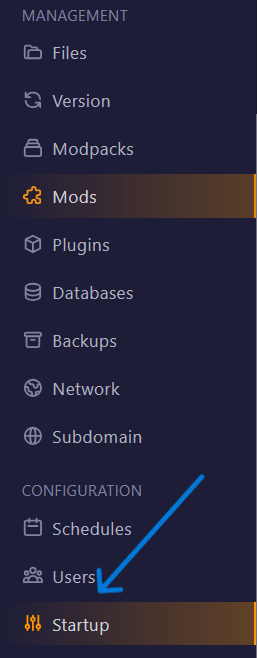
1️⃣ Access the Startup Settings
- Log in to your LordHosting panel
- Select your Minecraft server
- In the left sidebar, under Configuration, click on Startup
2️⃣ Change the Docker Image
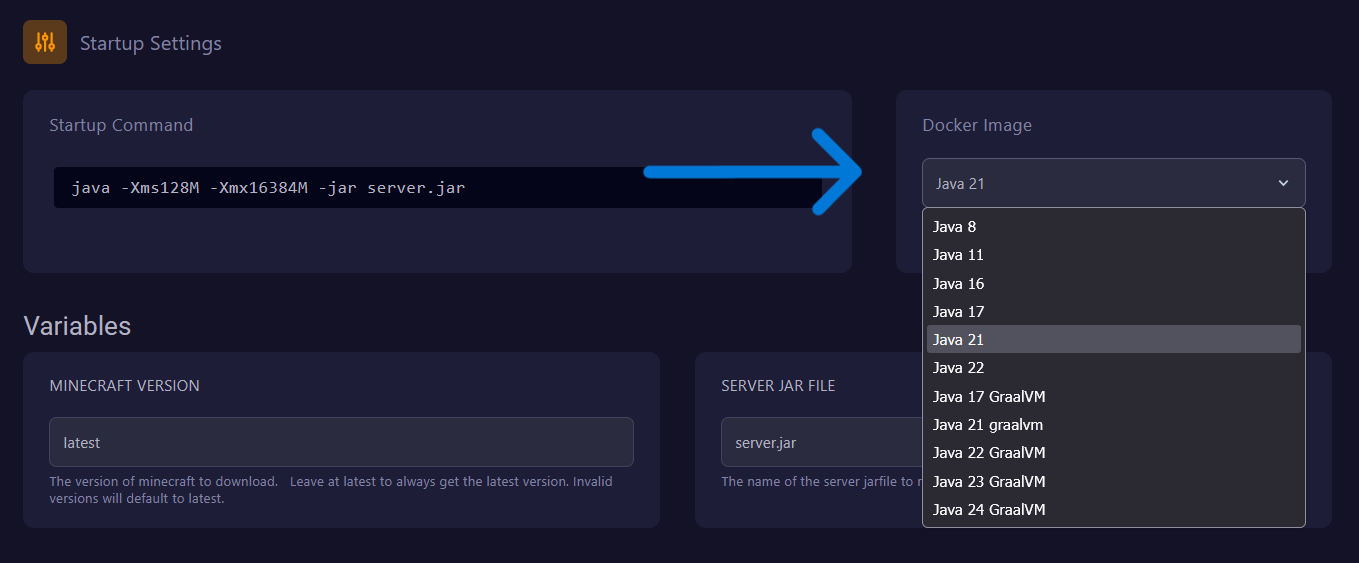
In the top right of the page, you'll see the Docker Image field with a dropdown menu. Click on it to see all available Java versions:
Want to put this guide into practice on your own server? Minecraft server hosting from €3.99/month at LordHosting, online in a few minutes.
Available Versions on LordHosting
| Docker Image | Use for |
|---|---|
| Java 8 | Servers 1.16 and before, modpacks 1.12.2 (RLCraft, Pixelmon) |
| Java 11 | Servers 1.16.5 Paper/Spigot |
| Java 16 | Servers 1.17 |
| Java 17 | Servers 1.18 to 1.20.4 |
| Java 21 | Servers 1.20.5+ / 1.21+ (recommended) |
| Java 22 | Experimental versions / snapshots |
| Java 17 GraalVM | Servers 1.18 - 1.20.4 (optimized performance) |
| Java 21 GraalVM | Servers 1.20.5+ (optimized performance) |
| Java 22+ GraalVM | Experimental versions / snapshots |
Select the version that matches your server.
GraalVM is an alternative Java version developed by Oracle, optimized for performance. It can provide 10-20% better performance compared to standard Java. If your server is resource-heavy, try a GraalVM version!
3️⃣ Restart Your Server
Click Restart - the change is applied instantly. No need to reinstall anything, your files and world are preserved.
❌ Common Errors After Changing Java
Server still won't start
→ Make sure you selected the right version. Check the Java/Minecraft compatibility table.
Unsupported class file major version 65
→ Your jar requires Java 21 but you're on Java 17 or lower. Switch to Java 21.
Error: A JNI error has occurred
→ Version conflict. Often caused by a Java version too new for an old modpack. Switch back to Java 8.
Performance degraded after the change
→ Try the GraalVM version of the same Java version. For example, switch from Java 21 to Java 21 GraalVM.
Need help? Our support team is available Monday to Saturday from 9am to 9pm to help you! 🎮
Want to rent a Minecraft server with Java version selectable from the panel? Plans start at €3.99/month with 1-click setup.
Put this guide into practice on your own server
From €3.99/month. Online in a few minutes, anti-DDoS protection, 7/7 support, no commitment.
Related guides
How to Choose the Best Minecraft Server Framework in 2026
Vanilla, Spigot, Paper, Forge, Fabric or NeoForge: which framework should you choose for your Minecraft server? Full comparison guide.
Copper Golem in Minecraft: the complete guide
How to build a copper golem in Minecraft, what it does, how it oxidizes and how to use it to sort your chests automatically, solo or on a server.
Create a Minecraft server (Java & Bedrock): 2026 guide
How to create a Minecraft Java or Bedrock server in 2026: free self-hosting or dedicated host. Step-by-step guide, server.properties config, mods.
Playing Minecraft Crossplay on PS5 & PC
Yes, PC (Java) and PS5/Xbox/Switch (Bedrock) players can play Minecraft together: here's how to enable crossplay on your server, step by step.