 Windows VPS
Connect to your Windows VPS over RDP (PC, Mac, iPhone/Android)
RDP connection to a Windows VPS from Windows (mstsc), Mac and mobile (Windows App): credentials, first start, classic errors and emergency access.
A LordHosting Windows VPS is driven over RDP (Remote Desktop): open your device's RDP client, enter the VPS IPv4 address, the Administrator account and the password received by e-mail, then change that password at first login. On Mac and mobile, the free Windows App replaces mstsc. If you get locked out, the VNC console in the client area is always available.
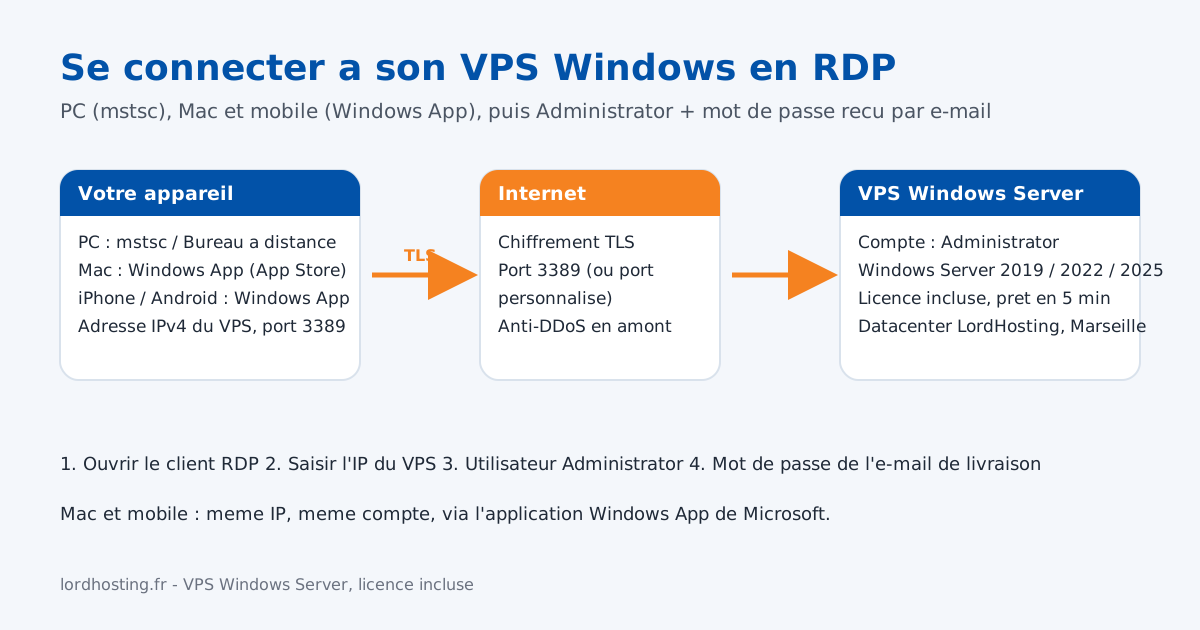
The RDP protocol (Remote Desktop Protocol) shows the full desktop of your Windows VPS on your screen, as if you were sitting in front of the machine: mouse, keyboard, clipboard, file transfer. This guide covers the first connection from a Windows PC, a Mac, an iPhone or an Android phone, then the most frequent errors and what to do when nothing answers any more.
⚙️ 1. What you need
Everything is in the delivery e-mail, sent about five minutes after ordering:
- the dedicated IPv4 address of the VPS, for example
141.11.XXX.XXX; - the RDP port,
3389by default (it changes if you followed our hardening guide); - the Administrator account;
- the randomly generated initial password.
If the e-mail has not arrived, the same information is shown in the client area, on the service page. Wait until the VPS status is Active before trying to connect: while Windows Server is being installed, port 3389 does not answer yet.
⚙️ 2. From a Windows PC (mstsc)
- Press the Windows key, type
mstscand confirm: the Remote Desktop Connection tool opens. - In Computer, enter the VPS IPv4 address. If the port was changed, add it after a colon:
141.11.XXX.XXX:53389. - Click Show options, type
Administratorin User name, then Connect. - Enter the password from the e-mail. A certificate warning appears the first time: it is normal, the server presents a self-signed certificate. Tick Don't ask me again and accept.
The Windows Server desktop appears. In the Local Resources tab of mstsc you can share the clipboard, a printer or a local drive: handy for copying files to the VPS without FTP.
⚙️ 3. From a Mac, an iPhone, an iPad or Android
Microsoft provides Windows App (formerly Microsoft Remote Desktop) for free on the App Store and the Play Store.
- Install Windows App, then add a PC (+ icon).
- PC name: the VPS IPv4 address, followed by the port if needed.
- User account: create an account with
Administratorand the password. - Tap the PC tile to open the session. On mobile, the virtual mouse mode makes the desktop usable with one hand; on iPad, a Bluetooth keyboard and mouse turn the tablet into a workstation.
Mac shortcuts are translated automatically: Cmd+C becomes Ctrl+C on the Windows side.
⚙️ 4. First login: three steps not to skip
- Change the Administrator password: Ctrl+Alt+End inside the session opens the security screen, choose Change a password. At least twenty characters, unique.
- Check the version:
winverin the Start menu confirms Windows Server 2019, 2022 or 2025, as chosen at checkout. - Let Windows Update finish: the first boot downloads the month's fixes; a reboot may cut the RDP session for a minute, that is expected.
⚙️ 5. Classic errors and their cause
| Message | Likely cause | What to do |
|---|---|---|
| "The remote computer could not be found" | Mistyped IP or VPS not active yet | Check the IP in the client area, wait for the Active status |
| Connection spins then fails | Port 3389 blocked by your network (company, some 4G carriers) | Try from another network, or change the RDP port on the server |
| "Your credentials did not work" | Password changed or numeric keypad off | Type the password in a notepad to check it, then paste it |
| "The account is locked" | Too many failed attempts (account lockout active) | Wait 15 minutes or use the VNC console |
| Black screen after connecting | Previous session not closed properly | Wait 30 seconds, or reboot the VPS from the client area |
⚙️ 6. When RDP no longer answers: the VNC console
From the client area, the VPS page offers a VNC console that shows the server screen without going through Windows networking. It is the way back in after an overly strict firewall, a badly changed RDP port or a stopped Remote Desktop service. From that console you can reopen the port in the firewall, restart the service with net start TermService or simply reboot the machine.
⚙️ Ready-to-paste configuration
A .rdp file saved on your desktop avoids retyping the settings. Replace the address and port, save as vps-lordhosting.rdp, then double-click:
full address:s:141.11.XXX.XXX:3389
username:s:Administrator
screen mode id:i:2
desktopwidth:i:1920
desktopheight:i:1080
session bpp:i:32
redirectclipboard:i:1
redirectprinters:i:0
audiomode:i:0
authentication level:i:2
prompt for credentials:i:1
screen mode id:i:2 opens the session full screen; redirectclipboard:i:1 shares the clipboard; authentication level:i:2 tolerates the server's self-signed certificate.
✅ Conclusion
RDP is ready as soon as the server is delivered: an address, an account, a password, and the Windows Server desktop appears on any device. The next step is to protect that access, because port 3389 is the most scanned port on the Internet: follow our guide on securing RDP access on your Windows VPS. And if your goal is to run a terminal 24/7, see install MetaTrader 4/5 on a Windows VPS.
No server yet? Our Windows Server VPS are delivered in five minutes with the Windows Server licence included, RDP access and a dedicated IPv4.
❗Always good to know
Put this guide into practice on your own server
From €8/month. Online in a few minutes, anti-DDoS protection, 7/7 support, no commitment.
Frequently asked questions
Related guides
Install IIS on a Windows Server VPS
Enable IIS with one PowerShell command, create your sites, add PHP and HTTPS. Copy-paste commands, from Windows Server 2019 to 2025.
Install MetaTrader 4/5 on a Windows VPS to trade 24/7
Install MT4 or MT5 on a Windows Server VPS, drop in your Expert Advisors, restart the terminal automatically and measure latency to your broker: the complete forex VPS guide.
Create a Scheduled Task on Windows Server
Create a scheduled task via Task Scheduler or PowerShell, run a script with no session open, and check its run history.
Updating your Pterodactyl VPS
Detailed guide to safely updating your Pterodactyl VPS to the latest version: backups, prerequisites, commands and post-update checks.