 Windows VPS
Install MetaTrader 4/5 on a Windows VPS to trade 24/7
Install MT4 or MT5 on a Windows Server VPS, drop in your Expert Advisors, restart the terminal automatically and measure latency to your broker: the complete forex VPS guide.
Install MetaTrader on the Windows VPS like on a PC, connect your account, drop your Expert Advisors into the MQL5\Experts folder, enable algo trading, then create a scheduled task that relaunches the terminal at boot. Measure latency to the broker's server with Test-NetConnection: a few milliseconds from Marseille to London or Frankfurt.
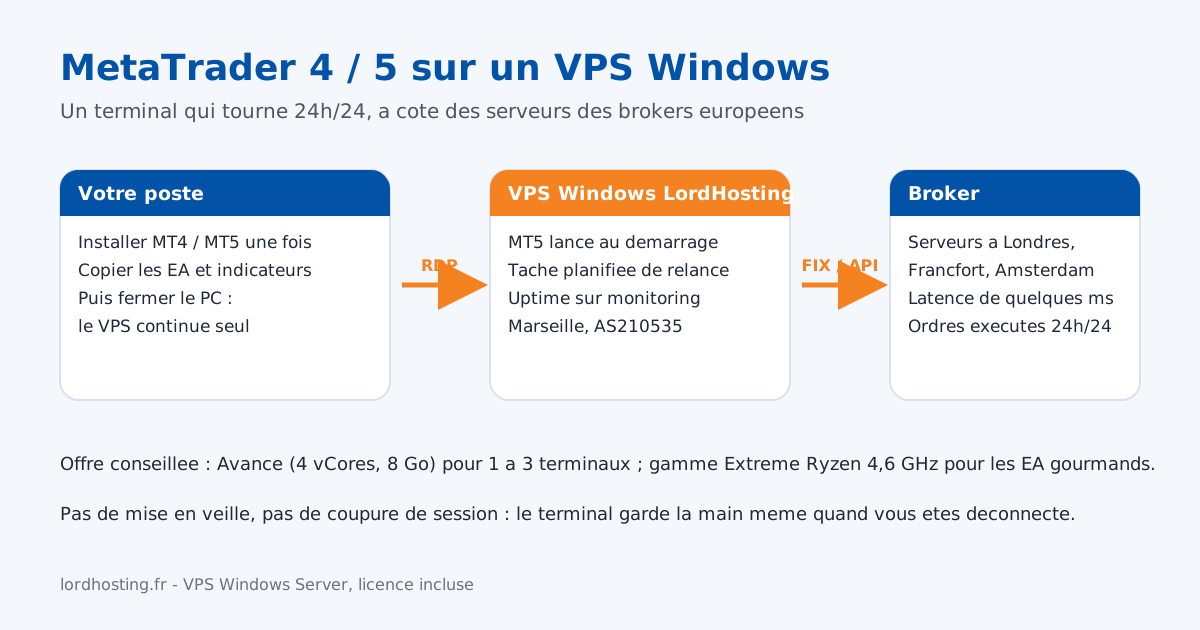
A Windows VPS is the standard tool for automated trading: your MetaTrader 4 or 5 terminal runs day and night, independently of your computer and your connection. This guide goes from installation to automatic restart, with the points to watch so that no order is lost overnight.
⚙️ 1. Choose and prepare the VPS
For one terminal and two or three EAs, 4 GB of RAM and 3 vCores are enough; for several terminals or demanding indicators, aim for 8 GB. If your EAs compute a lot or if you run backtests, clock speed matters more than the number of cores: that is the use case of the Extreme range at 4.6 GHz.
Before installing anything, connect over RDP (our guide connect to your Windows VPS over RDP), change the Administrator password and apply the settings of the guide secure RDP access: a trading terminal holds your broker credentials, it must not be exposed.
Then disable the session screen sleep, which has no effect on the server itself, and let Windows Update finish its first pass so that you do not suffer a reboot in the middle of a session.
⚙️ 2. Install MetaTrader 4 or 5
- From the VPS, download the installer from your broker (the "Platforms" page of your client area) rather than from a third-party site: it already embeds the address of its servers.
- Run the installation, keeping the default folder
C:\Program Files\MetaTrader 5. - At first start, File, Login to Trade Account, enter the account number, the password and choose the broker's server.
- In Tools, Options, Expert Advisors, tick Allow algorithmic trading and, if your EAs need it, Allow WebRequest for the URLs concerned.
For several accounts or several brokers, install each terminal in a separate folder (MetaTrader 5 - BrokerA, MetaTrader 5 - BrokerB): each instance has its own data folder and its own settings.
⚙️ 3. Drop in your Expert Advisors and indicators
In the terminal, File, Open Data Folder opens the MQL5 (or MQL4) tree. Copy your .ex5 and .mq5 files:
MQL5\Expertsfor Expert Advisors;MQL5\Indicatorsfor indicators;MQL5\LibrariesandMQL5\Includefor their dependencies.
The transfer goes through the RDP clipboard (copy on your PC, paste in the VPS) or through a shared drive in the mstsc options. Then click Refresh in the terminal's Navigator, drag the EA onto the chart you want and check the smiling face at the top right: it means the EA is allowed to trade. A sad face means algo trading is disabled, either in the options or through the Algo Trading button of the toolbar.
⚙️ 4. Relaunch the terminal automatically
After a reboot (Windows update, maintenance), MetaTrader does not restart by itself. A scheduled task takes care of it: Task Scheduler, Create Task, trigger At startup, action Start a program with the path of terminal64.exe, and the option Run whether user is logged on or not. The PowerShell version is in the ready-to-paste configuration below; our guide on Windows scheduled tasks details the other cases.
The relaunched terminal reconnects to the saved account and resumes the EAs attached to the charts, provided you clicked File, Save Profile after placing them.
⚙️ 5. Measure latency to the broker
The broker's server is shown at the bottom right of the terminal (for example mt5.broker.com:443). From PowerShell:
Test-NetConnection mt5.broker.com -Port 443
The PingReplyDetails (RTT) field gives the round trip in milliseconds. From our Marseille datacenter, count a few milliseconds to London, Frankfurt or Amsterdam, where most European brokers are hosted. If the broker has several access servers, pick the one with the lowest RTT in the terminal's connection list.
⚙️ 6. Monitor without logging in every day
- Push notifications: in Tools, Options, Notifications, enter the MetaQuotes ID of the mobile app to receive EA alerts on your phone.
- Journal: the Journal tab of the Toolbox records disconnections and errors; a weekly glance is enough.
- VPS availability: our status page tracks the infrastructure live, and the LordHosting app lets you reboot the VPS from your pocket.
⚙️ Ready-to-paste configuration
PowerShell script to run as administrator: it creates the scheduled task that relaunches the terminal at boot and checks latency to the broker. Adapt the three variables at the top.
# --- Adapt ---
$Terminal = "C:\Program Files\MetaTrader 5\terminal64.exe"   # MT4: "C:\Program Files (x86)\MetaTrader 4\terminal.exe"
$Broker   = "mt5.broker.com"                                 # server shown at the bottom of the terminal
$Port     = 443
# -------------

# 1. Automatic MetaTrader relaunch when the VPS boots
$action  = New-ScheduledTaskAction -Execute $Terminal
$trigger = New-ScheduledTaskTrigger -AtStartup
$settings = New-ScheduledTaskSettingsSet -RestartCount 3 -RestartInterval (New-TimeSpan -Minutes 1) -ExecutionTimeLimit (New-TimeSpan -Days 365)
Register-ScheduledTask -TaskName "MetaTrader" -Action $action -Trigger $trigger -Settings $settings -User "Administrator" -RunLevel Highest -Force

# 2. Latency to the broker
Test-NetConnection $Broker -Port $Port | Select-Object ComputerName, TcpTestSucceeded, @{n='RTT ms';e={$_.PingReplyDetails.RoundtripTime}}
When the task is registered, Windows asks for the Administrator account password: it is used to start the terminal even without an open RDP session.
✅ Conclusion
Terminal installed, EAs in place, automatic relaunch and latency measured: your strategy runs without depending on your PC. Keep the VPS updated, check the journal once a week and keep the trading account password in a manager rather than in a text file on the desktop.
No server yet? Our Windows Server VPS are delivered in five minutes with the Windows licence included, hosted in Marseille, in the Normal (EPYC) or Extreme (Ryzen 4.6 GHz) range depending on the load of your EAs.
❗Always good to know
Put this guide into practice on your own server
From €8/month. Online in a few minutes, anti-DDoS protection, 7/7 support, no commitment.
Frequently asked questions
Related guides
Create a Scheduled Task on Windows Server
Create a scheduled task via Task Scheduler or PowerShell, run a script with no session open, and check its run history.
Secure RDP access on your Windows VPS: port, NLA, firewall, account lockout
Five settings to protect Remote Desktop on a Windows Server VPS: password, NLA, changing port 3389, firewall rule by IP and account lockout.
Connect to your Windows VPS over RDP (PC, Mac, iPhone/Android)
RDP connection to a Windows VPS from Windows (mstsc), Mac and mobile (Windows App): credentials, first start, classic errors and emergency access.
Install IIS on a Windows Server VPS
Enable IIS with one PowerShell command, create your sites, add PHP and HTTPS. Copy-paste commands, from Windows Server 2019 to 2025.