 Windows VPS
Secure RDP access on your Windows VPS: port, NLA, firewall, account lockout
Five settings to protect Remote Desktop on a Windows Server VPS: password, NLA, changing port 3389, firewall rule by IP and account lockout.
Port 3389 is scanned constantly: a freshly delivered Windows VPS receives its first connection attempts within minutes. Without any setting, a weak password eventually falls. The five measures below take a quarter of an hour and make those bots harmless.
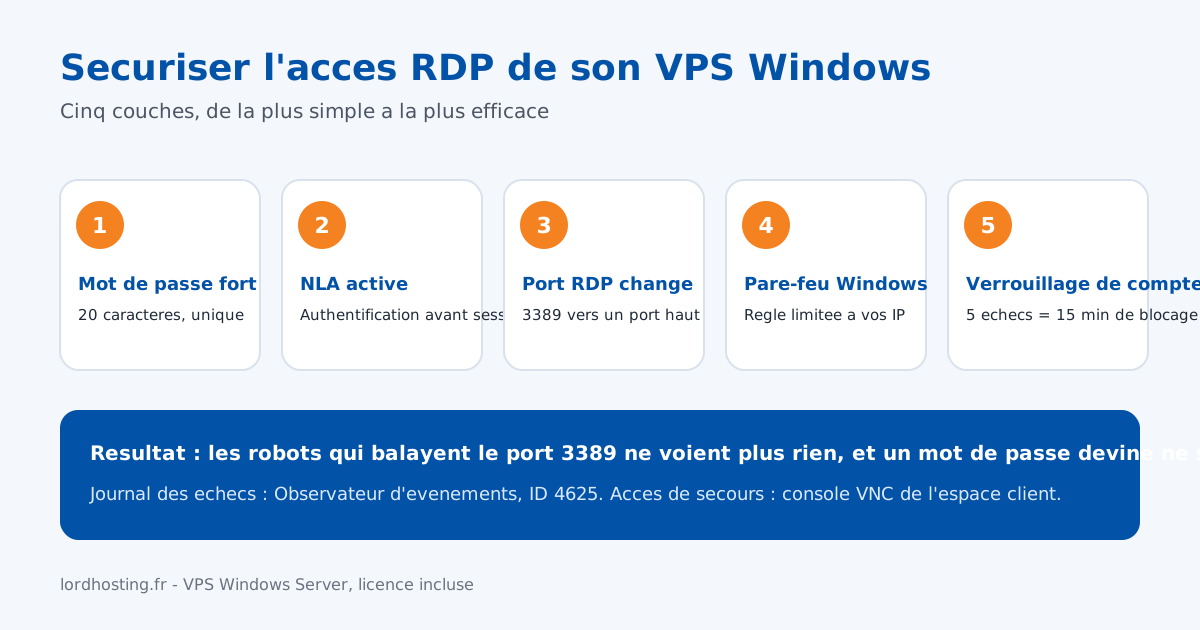
This guide applies to any Windows VPS running Windows Server 2019, 2022 or 2025. The commands run in PowerShell as administrator (right-click the Start menu, Terminal (Admin)). Keep your current RDP session open during the whole procedure and test every change from a second session: if something goes wrong, the first one is still there to fix it.
⚙️ 1. A strong Administrator password
The delivery password is random but it travelled by e-mail: change it. Ctrl+Alt+End inside the RDP session opens the security screen, then Change a password. In PowerShell:
$p = Read-Host -AsSecureString "New Administrator password"
Set-LocalUser -Name "Administrator" -Password $p
At least twenty characters, never reused elsewhere. A password manager does this better than your memory.
⚙️ 2. Keep NLA enabled
Network Level Authentication (NLA) requires the credentials before opening a graphical session: a bot does not even see the login screen. It is active on our templates; check it, and put it back if some software disabled it:
Get-ItemProperty "HKLM:\SYSTEM\CurrentControlSet\Control\Terminal Server\WinStations\RDP-Tcp" -Name UserAuthentication
Set-ItemProperty "HKLM:\SYSTEM\CurrentControlSet\Control\Terminal Server\WinStations\RDP-Tcp" -Name UserAuthentication -Value 1
The value 1 means NLA is mandatory. Recent clients (mstsc, Windows App) handle it without any change.
⚙️ 3. Change the RDP port
Pick a port between 49152 and 65535, for example 53389, then:
Set-ItemProperty "HKLM:\SYSTEM\CurrentControlSet\Control\Terminal Server\WinStations\RDP-Tcp" -Name PortNumber -Value 53389
New-NetFirewallRule -DisplayName "RDP 53389" -Direction Inbound -Protocol TCP -LocalPort 53389 -Action Allow
Restart-Service TermService -Force
Test right away from a second session, adding the port to the address: 141.11.XXX.XXX:53389. If it opens, disable the default rules for port 3389:
Get-NetFirewallRule -DisplayGroup "Remote Desktop" | Disable-NetFirewallRule
On a French installation the group is called Bureau à distance.
⚙️ 4. Restrict the firewall to your IP addresses
If your connection has a fixed IP (business line, company VPN), restrict the RDP rule to that address: the rest of the Internet will see a closed port.
Set-NetFirewallRule -DisplayName "RDP 53389" -RemoteAddress 203.0.113.10,198.51.100.0/24
Several addresses or ranges are separated by commas. With a dynamic IP, prefer step 5 alone, or go through a VPN that gives you a stable address.
⚙️ 5. Lock the account after five failures
Even with a changed port, a password must not be testable thousands of times. The lockout policy blocks the account for fifteen minutes after five failures:
net accounts /lockoutthreshold:5 /lockoutduration:15 /lockoutwindow:15
To see who is knocking, the Event Viewer, Security log, event 4625, lists every failure with the source address. In PowerShell:
Get-WinEvent -FilterHashtable @{LogName='Security'; Id=4625} -MaxEvents 20 | Format-List TimeCreated, Message
If you lock yourself out, the VNC console in the client area lets you unlock the account or simply wait for the fifteen minutes to pass.
⚙️ Ready-to-paste configuration
The full script, to adapt at the top (port, allowed IP addresses), to run in PowerShell as administrator from the open RDP session, then to check from a second session before closing the first one:
# --- Adapt ---
$Port      = 53389                      # new RDP port (49152-65535)
$Allowed   = @("203.0.113.10")          # your fixed IPs; @() for no restriction
# -------------

# 1. NLA mandatory
Set-ItemProperty "HKLM:\SYSTEM\CurrentControlSet\Control\Terminal Server\WinStations\RDP-Tcp" -Name UserAuthentication -Value 1

# 2. New port + firewall rule
Set-ItemProperty "HKLM:\SYSTEM\CurrentControlSet\Control\Terminal Server\WinStations\RDP-Tcp" -Name PortNumber -Value $Port
$rule = New-NetFirewallRule -DisplayName "RDP $Port" -Direction Inbound -Protocol TCP -LocalPort $Port -Action Allow
if ($Allowed.Count -gt 0) { Set-NetFirewallRule -DisplayName "RDP $Port" -RemoteAddress $Allowed }

# 3. Account lockout: 5 failures = 15 minutes
net accounts /lockoutthreshold:5 /lockoutduration:15 /lockoutwindow:15

# 4. Restart the Remote Desktop service (the current session survives)
Restart-Service TermService -Force
Write-Host "RDP now listens on port $Port. Test from a SECOND session before disabling 3389:"
Write-Host 'Get-NetFirewallRule -DisplayGroup "Remote Desktop" | Disable-NetFirewallRule'
✅ Conclusion
Port moved, NLA active, firewall restricted and account lockout: the bots scanning the Internet no longer see anything, and a guessed password is no longer enough. If you are just discovering Remote Desktop, start with connect to your Windows VPS over RDP; for a trading terminal that must stay online, continue with install MetaTrader 4/5 on a Windows VPS.
Need a server to secure? Our Windows Server VPS are delivered with the licence included, a dedicated IPv4 and the emergency VNC console in the client area.
❗Always good to know
Put this guide into practice on your own server
From €8/month. Online in a few minutes, anti-DDoS protection, 7/7 support, no commitment.
Frequently asked questions
Related guides
Connect to your Windows VPS over RDP (PC, Mac, iPhone/Android)
RDP connection to a Windows VPS from Windows (mstsc), Mac and mobile (Windows App): credentials, first start, classic errors and emergency access.
Install IIS on a Windows Server VPS
Enable IIS with one PowerShell command, create your sites, add PHP and HTTPS. Copy-paste commands, from Windows Server 2019 to 2025.
Install MetaTrader 4/5 on a Windows VPS to trade 24/7
Install MT4 or MT5 on a Windows Server VPS, drop in your Expert Advisors, restart the terminal automatically and measure latency to your broker: the complete forex VPS guide.
Install Azuriom on a web offer
Complete tutorial to install the Azuriom CMS on a LordHosting web hosting plan: FTP/cPanel upload, MySQL database and initial configuration.