 Minecraft Java Edition
GeyserMC: Java and Bedrock crossplay on your server
Install GeyserMC and Floodgate so Bedrock players (mobile, console) can join your Minecraft Java server. Step-by-step guide with ports and a ready config.
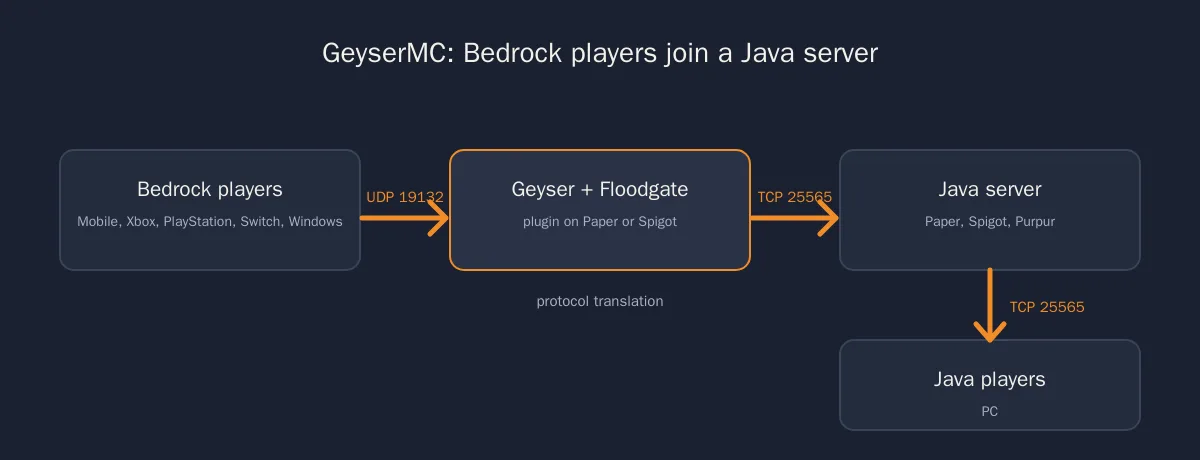
GeyserMC is a proxy that translates the Bedrock protocol into Java: with it, mobile, Windows and console players can join your Minecraft Java server. Add Floodgate so they do not need a Java account, open UDP port 19132, and your Bedrock friends connect with your server address.
Java and Bedrock are two different games that do not talk to each other: a Java server only accepts Java clients, a Bedrock server only Bedrock clients. GeyserMC breaks that wall. Installed on your Java Minecraft server, it receives connections from Bedrock players, translates every packet in real time and lets them into the same world as PC players.
It is the ideal solution for a mixed group of friends: three on PC, one on PS5, one on a phone. You keep the plugins and flexibility of Java, and nobody is left out. If your whole group plays on console and mobile instead, a native Minecraft Bedrock server stays simpler and closer to the Bedrock game.
This guide covers installing GeyserMC and Floodgate on a Paper or Spigot server, configuring ports on a hosted server, a ready-to-paste configuration file and the most common failures.
📑 Table of contents
- What is GeyserMC?
- Install GeyserMC and Floodgate
- Configure the ports
- Ready-to-paste configuration
- Common problems
🌉 What is GeyserMC?
GeyserMC (or simply Geyser) is an open source project acting as a translator between the two editions of Minecraft. The Bedrock client thinks it is talking to a Bedrock server; the Java server thinks it is receiving a Java player. In between, Geyser converts movement, blocks, inventory, chat and menus.
Two components work together:
| Component | Role | Required? |
|---|---|---|
| GeyserMC | Translates the Bedrock protocol into Java and listens on a dedicated UDP port | Yes |
| Floodgate | Lets Bedrock players join with their Microsoft account, without a Java account, and adds a prefix (. by default) to their name | Strongly recommended |
Without Floodgate, a Bedrock player needs a Java Edition account and must sign in with it through Geyser: rarely what you want. With Floodgate your server stays in online-mode=true, so it remains protected against name spoofing, and Bedrock players go through Xbox Live authentication.
What Geyser handles well: the base game, plugins (protection, economy, minigames), resource packs to some extent. What it does not handle: Forge, Fabric or NeoForge mods, whose content has no equivalent on Bedrock. For a modded server, crossplay is not a realistic option.
🔧 Install GeyserMC and Floodgate
Requirements: an up-to-date Java server running Paper, Spigot or Purpur. If you are still on Vanilla, our guide choosing between Paper, Purpur, Spigot and Vanilla explains how to switch server version from the panel.
- Download both plugins from the official site:
Geyser-Spigot.jarat geysermc.org/download andfloodgate-spigot.jarfrom the same page, Floodgate tab. Always grab both at the same time so they are compatible with each other. - Drop them in your server's
pluginsfolder, through the panel's file manager or over SFTP. At Lordhosting, Geyser and Floodgate are also among the plugins you can install in one click from the panel. - Restart the server. On first start, Geyser creates the
plugins/Geyser-Spigotfolder with itsconfig.yml, and Floodgate createsplugins/floodgatewith itskey.pemkey. - Open
plugins/Geyser-Spigot/config.ymland setauth-type: floodgatein theremotesection. Check the port in thebedrocksection (19132 by default), see the ports section below. - Restart a second time. The console should show a line saying that Geyser started and is listening on its Bedrock port.
- On the Bedrock player's side: Play, Servers tab, Add Server, then the server's IP address and the Bedrock port. On Xbox, PlayStation and Switch, the game has no such button for third-party servers: use BedrockConnect (console DNS) or the BedrockTogether app on a phone, as for any Bedrock server.
Useful commands once it runs:
/geyser version    # installed version and supported Bedrock version
/geyser list       # connected Bedrock players
/geyser reload     # reloads config.yml without a restart
/geyser dump       # diagnostic report to send to support
If your server uses a whitelist, add Bedrock players with their prefixed name, for example .Name, from the console or with /whitelist add. Our guide enable the Minecraft whitelist walks you through it.
🔌 Configure the ports
A Java server with Geyser listens on two different ports, using two different protocols:
| Port | Protocol | Who connects | Default |
|---|---|---|---|
| Java port | TCP | PC Java Edition players | 25565 |
| Bedrock port (Geyser) | UDP | Bedrock players: mobile, Windows, console | 19132 |
On a PC at home, open UDP port 19132 on your router on top of TCP 25565. On a hosted server, your server's port is assigned by the host, and the Bedrock port has to be assigned too:
- If your server has an extra port open over UDP, put its number in
bedrock: port:in Geyser'sconfig.yml. - If you only have one port, enable
clone-remote-port: true: Geyser then listens over UDP on the same number as the Java port. That port must be open for both TCP and UDP on the host's side. - When in doubt, ask support which UDP port is assigned to your server: writing a random port in the file is useless if the network does not let it through.
At Lordhosting, Minecraft Bedrock servers use port 19132; for a Java server with Geyser, the simplest route is to contact support to have the Bedrock port assigned to your server, then copy that number into the configuration.
Bedrock players type the same IP address (or the same domain name) as Java players, but with the Bedrock port. If you use a custom domain for the Java side, check that it points to the server's IP and give out the Bedrock port separately. A Minecraft SRV record only applies to the Java port.
🧰 Ready-to-paste configuration
Excerpt of plugins/Geyser-Spigot/config.yml with the keys that matter. The other keys in the file generated by Geyser can stay at their default values. Replace the values in capitals.
# plugins/Geyser-Spigot/config.yml
# REPLACE: BEDROCK_PORT (UDP port assigned to your server, 19132 by default)
#          SERVER_NAME (shown in the Bedrock server list)

bedrock:
  # Listen address: 0.0.0.0 to accept every connection
  address: 0.0.0.0
  # UDP port Bedrock players connect to
  port: BEDROCK_PORT
  # true: listen on the same port number as the Java server (over UDP)
  clone-remote-port: false
  # Lines shown in the Bedrock server list
  motd1: "SERVER_NAME"
  motd2: "Java + Bedrock crossplay"
  server-name: "SERVER_NAME"

remote:
  # auto: Geyser-Spigot connects directly to the Java server hosting it
  address: auto
  port: 25565
  # floodgate: sign in with a Microsoft account, no Java account needed
  # online: a Java account is required for every Bedrock player
  auth-type: floodgate

# Key generated by Floodgate, found automatically when both plugins
# run on the same server
floodgate-key-file: key.pem

# Bedrock player count shown in the server list (cosmetic only)
max-players: 100

# Show coordinates to Bedrock players, like F3 on Java
show-coordinates: true

# Reuse the Java server's MOTD and player count
passthrough-motd: true
passthrough-player-counts: true

debug-mode: false
And the most useful setting in plugins/floodgate/config.yml:
# plugins/floodgate/config.yml
# Prefix added in front of Bedrock players' names.
# Keep a character that is forbidden in Java names to prevent impersonation.
username-prefix: "."
After any change: /geyser reload for Geyser's file, a server restart for Floodgate's.
🚑 Common problems
« Unable to connect to world » on Bedrock. The UDP port cannot be reached. Check in order: Geyser actually started (line in the console), the port typed in the game is the Bedrock port and not the Java port, the port is open over UDP on the host's side or on your router.
« Outdated client » or « Outdated server » for a Bedrock player. The Bedrock client updated and your Geyser does not know that version yet. Download the latest Geyser (and Floodgate), replace the jars, restart. Geyser follows Bedrock updates closely, sometimes within days.
Geyser refuses to start after a Java server update. Geyser primarily supports the most recent Java version. If your server stays on an older version, add the ViaVersion plugin to bridge the gap, or update the server from the panel.
Bedrock players do not see their skin, or Java players see them with a default skin. Floodgate forwards Bedrock skins, but it takes a few seconds and a session restart on the player's side. A custom skin imported on Bedrock may not be forwarded.
« key.pem not found » error when Geyser starts. With Geyser-Spigot and Floodgate on the same server, the key is found automatically. On a network with a proxy, copy the proxy's Floodgate key.pem into every Geyser folder, matching the path given by floodgate-key-file.
A Bedrock player is not recognized by a permissions plugin. The . prefix confuses some plugins. Use the player's Floodgate UUID or the plugin's default groups, or pick another compatible prefix in Floodgate's configuration.
Cannot add the server on Xbox, PlayStation or Switch. Not a Geyser problem: these consoles offer no "add server" field for third-party servers. BedrockConnect (changing the console's DNS) or BedrockTogether (app on a phone) are the two usual methods.
Game commands differ. Bedrock players use the Java server's commands, since they are in a Java world. Give them the list of Minecraft Java commands rather than the Bedrock commands.
⚙ Going further
- Play Minecraft crossplay on PS5 and PC: the illustrated step-by-step of installing Geyser on a Lordhosting server.
- Enable the Minecraft whitelist: keep the server for your friends, Bedrock players included.
- Minecraft Java commands: the complete list: the commands your Bedrock players will use too.
- Minecraft Bedrock commands: to compare with what your console players know.
- The best Minecraft mods: for servers without crossplay.
🎮 Bring PC, console and mobile together on your Minecraft server
With GeyserMC and Floodgate, one server is enough for all your friends. Launch your Java Minecraft server at Lordhosting, install both plugins from the panel and try everything free for 24 hours with no credit card.
❓ Need help?
A UDP port to get assigned, an error message that will not go away? Our team answers 7 days a week. 👉 Contact LordHosting support
Frequently asked questions
Related guides
How Much RAM for a Minecraft Server? Complete Guide 2026
Complete guide to determine the right amount of RAM for your Minecraft server. Learn optimal RAM requirements for Vanilla, modded servers.
How to Install Fabric on Your Minecraft Server - Complete Guide 2026
Step-by-step guide to install Fabric Mod Loader on your Minecraft server. Easy setup from your Pterodactyl panel with mod management tips and troubleshooting.
Minecraft Beacon: the complete guide
How to craft a beacon in Minecraft, build the pyramid from level 1 to 4, pick the best effects and activate it: a complete guide with tables.
Minecraft enchantments: full list and best picks
The full list of Minecraft enchantments, how to build a level 30 enchanting table with 15 bookshelves, and the best enchantments for every item.